
Brief, medium, or full detail
Choose how deep you need the summary — one concise paragraph, a bullet list with key points, or a full article with sections and takeaways.
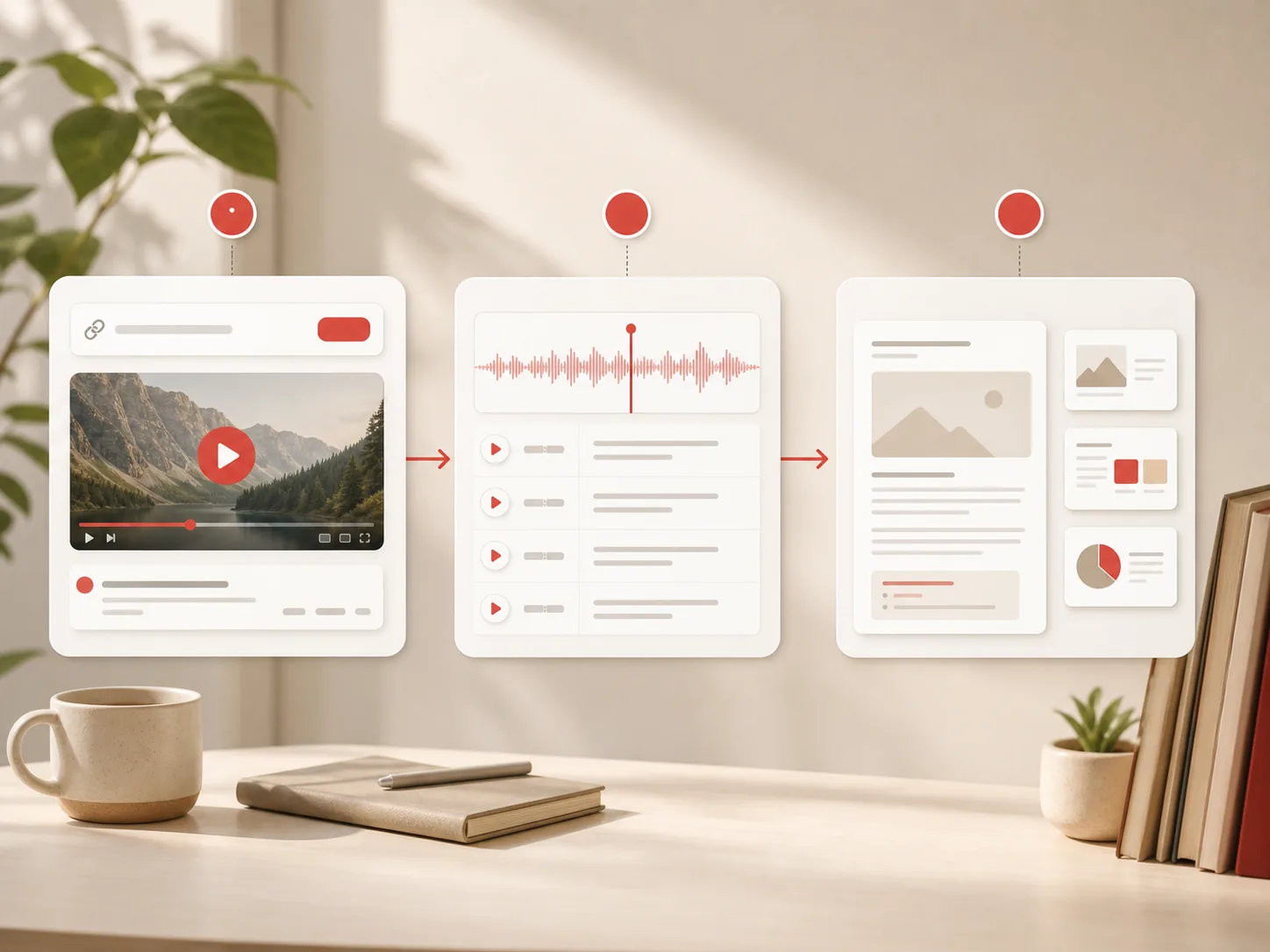
Paste a link — get a structured article
Choose how deep you need the summary — one concise paragraph, a bullet list with key points, or a full article with sections and takeaways.
Fast mode returns results in seconds using a speed-optimized model. Quality mode takes a bit longer but produces sharper, more structured output.
The full transcript is split into timed segments. Click any line to jump to that exact moment in the video on YouTube.
Download the subtitle text as a .txt file, or export your presentation as a PPTX or PDF to edit in Google Slides or PowerPoint.
AI scans the video for slides, whiteboards, code snippets, and charts — and picks the most informative frames for Deep Analysis mode.
The tool fetches YouTube's subtitle track directly — no video download. If subtitles are missing, Gemini AI transcribes the audio as a fallback.
After the summary loads, click 'Get AI Opinion' for an instant AI-generated analysis — key arguments examined, the author's stance assessed, and notable claims flagged.
Three AI-suggested questions appear below every summary. Click one to auto-start an answer, or type your own in the Ask AI tab — all answers come from the full transcript.
Get the full picture of any YouTube video — without watching it from start to finish.
Paste any YouTube link — the tool fetches the subtitle track directly from YouTube (no video download) and feeds the transcript to an AI that writes a clean, structured summary. Article mode is free and takes under 10 seconds.
Need to get a summary of a YouTube video without watching an hour-long lecture? Pick a detail level — a one-paragraph takeaway, a bullet list, or a full article with sections. Switch between fast and quality mode depending on how thorough the result needs to be.
The tool also works as a YouTube video to text converter — the full transcript is always available alongside the summary, split into timed segments so you can jump straight to any moment. Copy it, download it, or use it in your own notes.
For deeper content — tutorials, coding walkthroughs, lectures — Deep Analysis mode classifies the video, picks key screenshots, and writes a publication-ready article around them. No extension, no install. Just a URL and a free AI YouTube summary in seconds.
Install UnwatchedClick on iPhone or Android for quick access without an app store.
Yes. If YouTube subtitles are unavailable, the tool falls back to AI audio transcription. It works on most public videos.
Talks, lectures, podcasts, interviews, tutorials — anything with clear speech. Music videos or content without narration produce limited results.
Article summaries and subtitle extraction are free for everyone. Deep Analysis, Slides, Presentation, and Batch modes require a free account.
The tool reads videos in any language that YouTube provides subtitles for. You can also translate the output to 14 languages including English, Russian, Ukrainian, Spanish, Hindi, and more.
Use Article for a fast free summary. Use Deep for tutorials, lectures, or coding videos where visuals matter. Use Slides to navigate the video by key moments. Use Subtitles to get the raw transcript in seconds.
Yes. After the summary loads, click 'Get AI Opinion' below the article for an instant perspective. To ask questions, click one of the three suggested prompts below the summary, or type your own in the Ask AI tab.